Field Guide

OBS Overlay Setup

Use this guide to bring Guilty Spark overlays into OBS from either live series tracker mode or individual tracker mode.

Flow A: Live Tracker to OBS

  1. Open a live tracker session and verify the series context is active.
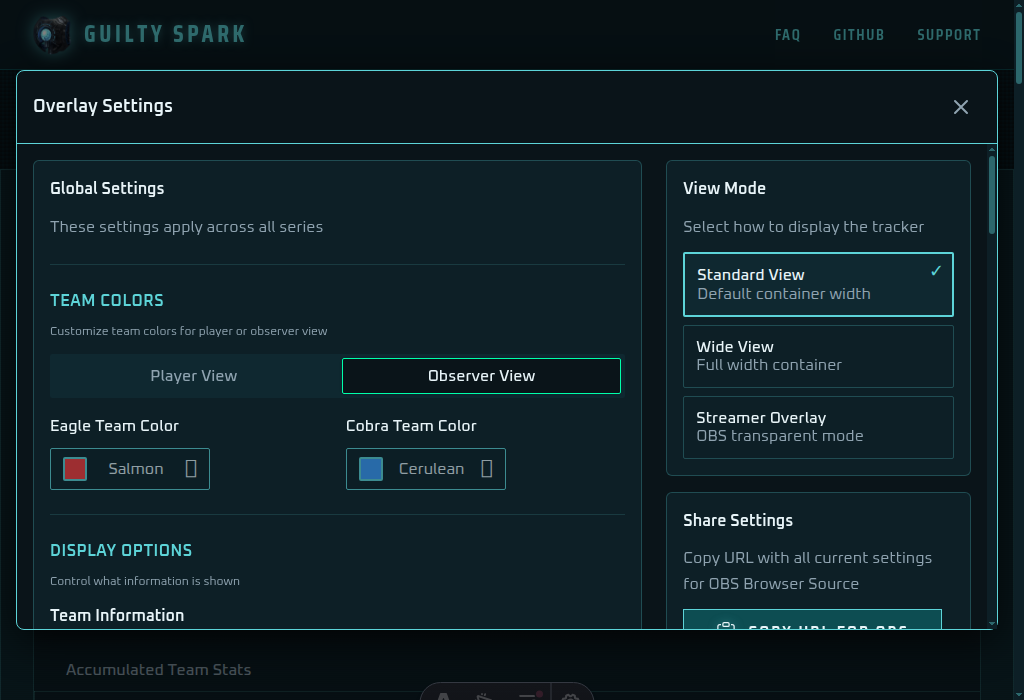
  2. Open overlay settings and switch to Streamer Overlay mode.
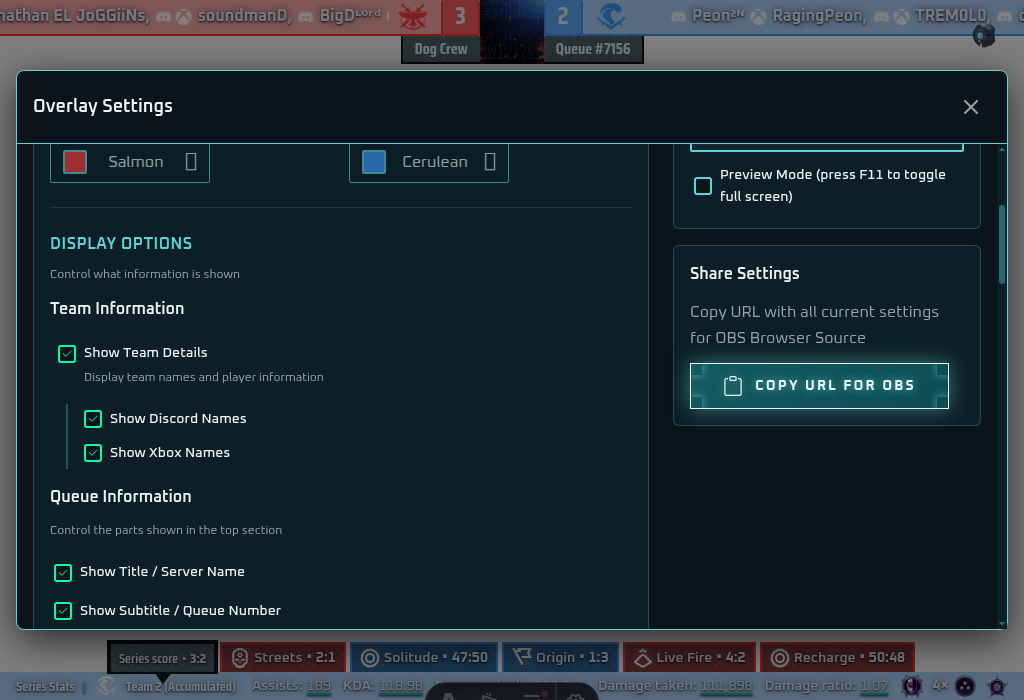
  3. Copy the generated URL.
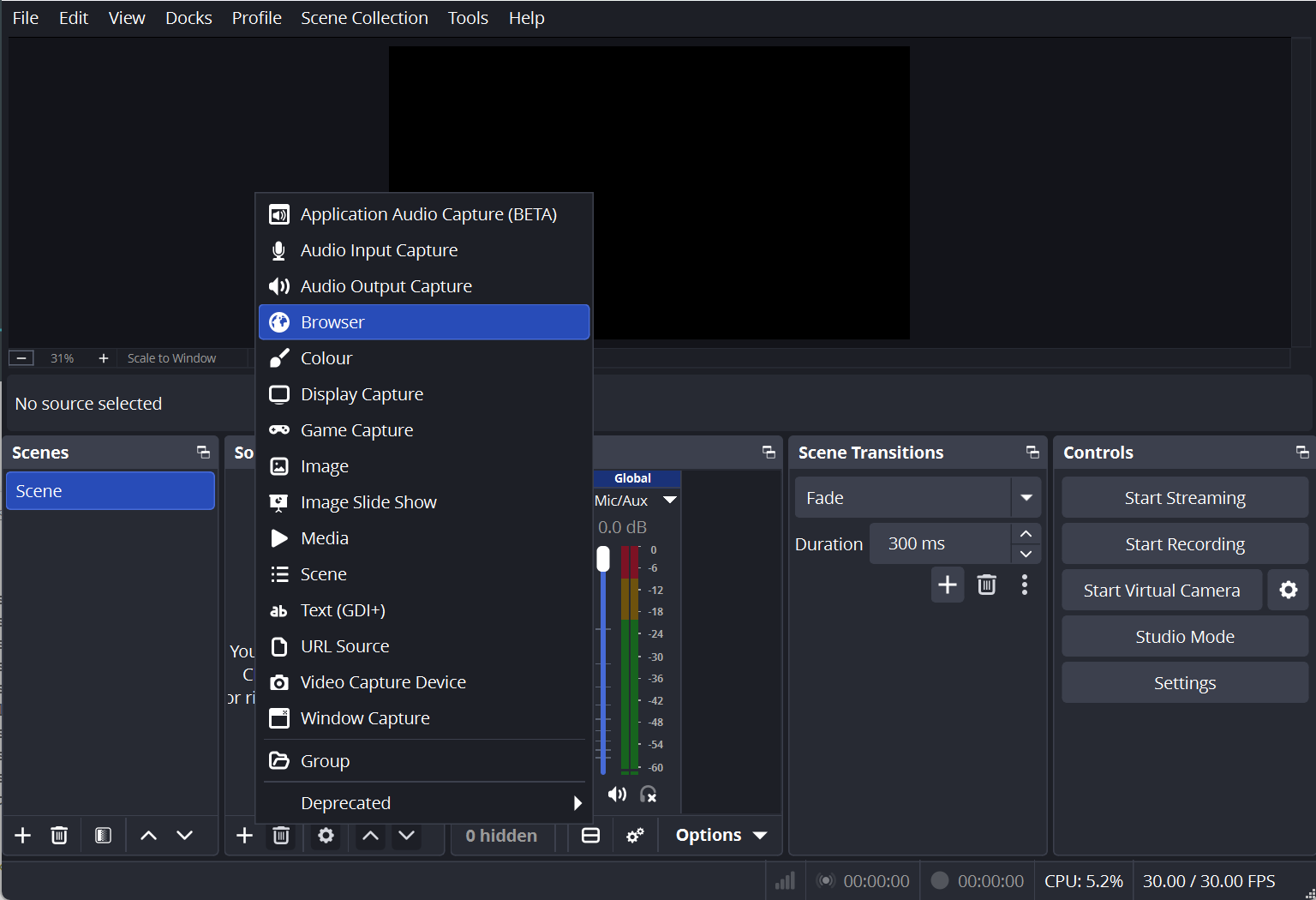
  4. In OBS, add a Browser Source and paste the URL.
  5. Set dimensions to 1920x1080, then resize in-scene as needed.
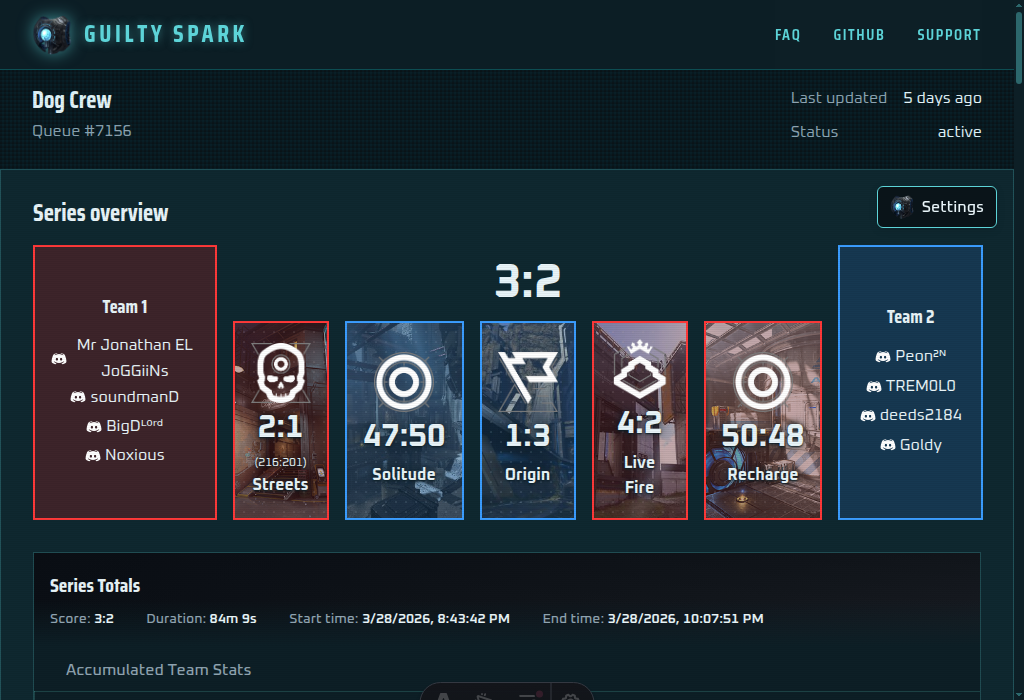
Live tracker page with active series overview
Live tracker view showing active series context before opening overlay settings.
Configure the overlay for streamer mode
Clicking settings in the top right allows you to configure the overlay for streamer mode.
Overlay settings showing Copy URL for OBS in streamer mode
Copy the generated OBS URL from streamer overlay mode.
OBS Browser Source settings for Guilty Spark overlay
In OBS Studio add a Browser Source for live tracker overlays.

Flow B: Individual Tracker to OBS

  1. Open Individual Tracker manager and select the tracker to broadcast.
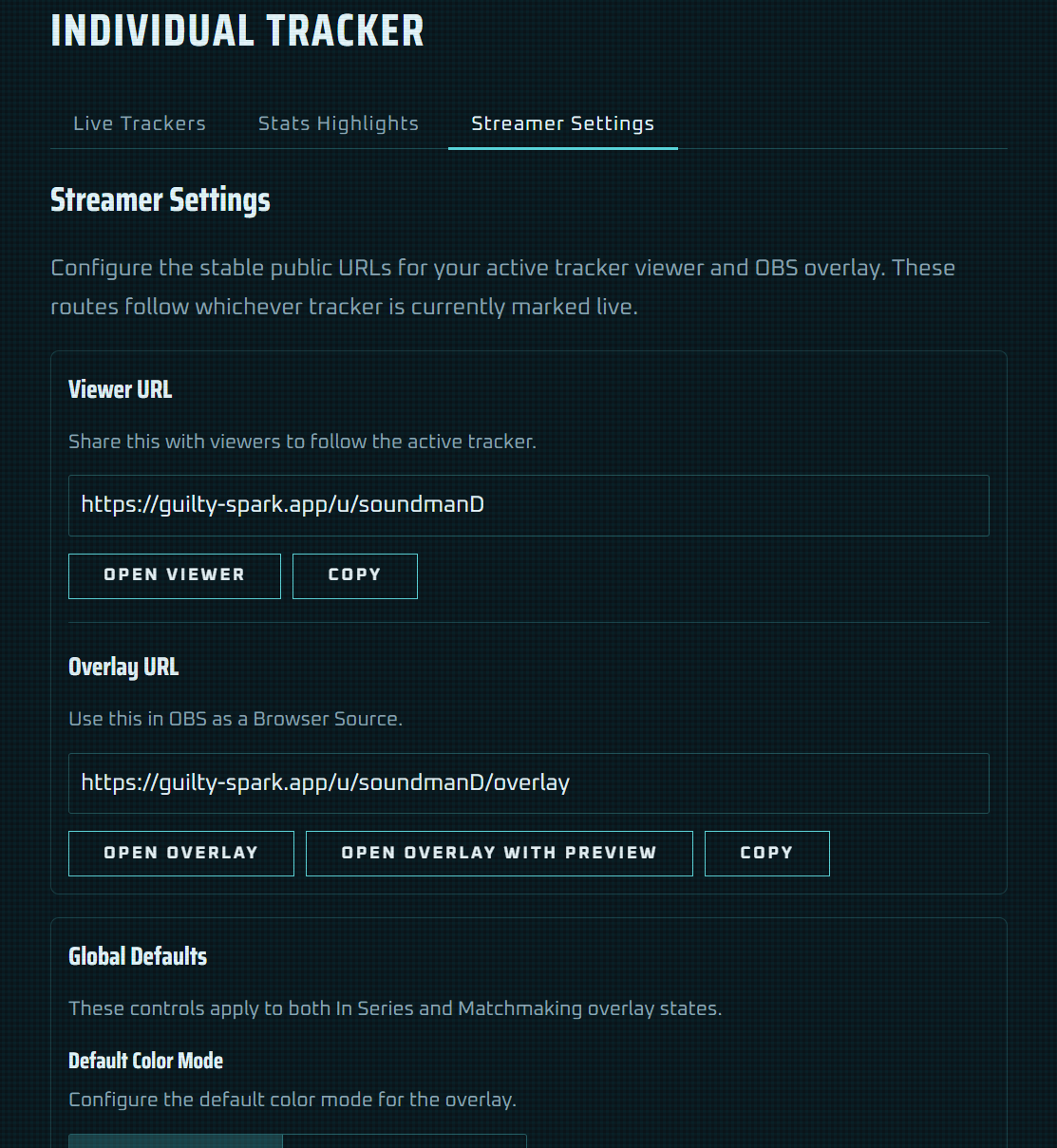
  2. Open tracker overlay settings and copy the OBS URL.
  3. Create or update a Browser Source in OBS with the copied URL.
  4. Confirm tabs, ticker, and stat regions are readable in preview.
  5. Lock the source in OBS once layout is final.
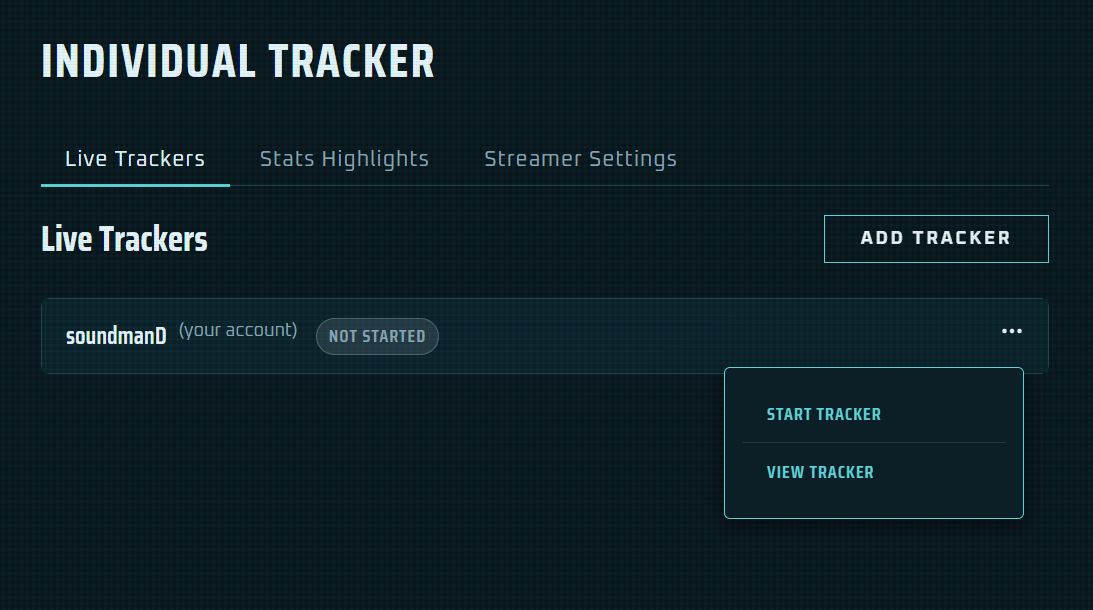
Individual Tracker manager: starting a tracker
Individual Tracker Streamer Settings
Configure the streamer settings for your audience-facing overlay, then copy the OBS URL for use in a Browser Source. Share your viewer URL with your audience for direct access to the tracker viewer page.
OBS Browser Source settings for Guilty Spark overlay
In OBS Studio add a Browser Source for Individual Tracker overlays.